Overview
After a company reorganization, some teams may need to report to a different department. The Change Superior feature lets enterprise admins move a one-pager — along with its entire subtree — under a different superior one-pager within the same strategy version, without losing any content or history.
Who can use this
Only users with the Enterprise Admin role can change a one-pager's superior. The option appears in Edit mode only.
Top-level (L0) one-pagers have no superior and cannot be moved.
How to change the superior
- Open the one-pager you want to move and switch to Edit mode
- Find the Superior one-pager selector at the top of the page
- Click it and type to search for the new superior
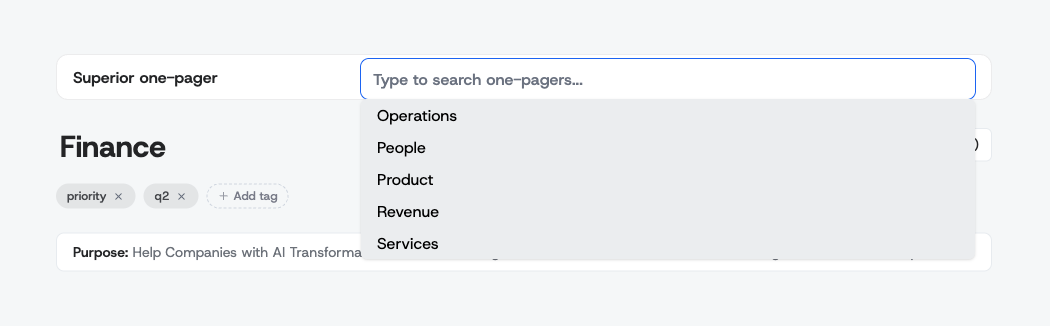
- Select the desired superior from the dropdown
- A confirmation dialog appears warning that all cascades from the current superior will be removed
- Click Yes, change superior one-pager to confirm
The one-pager and all linked one-pagers in its subtree move to the new position in the hierarchy. Levels are recalculated automatically.
What happens to cascades
When you change a one-pager's superior:
- All cascades from the old superior to this one-pager are permanently removed — including pending, accepted, and rejected cascades
- Fresh cascades from the new superior are created automatically based on the new superior's content
- Cascades within the subtree (from this one-pager down to its linked one-pagers) are preserved unchanged
After the move, review the new incoming cascades in the sidebar and accept or reject them as needed.
Restrictions
The dropdown automatically excludes invalid choices. You cannot move a one-pager to:
- Itself
- A one-pager in its own subtree — this would create a circular dependency
- A one-pager in a different strategy version — both must be in the same version
- A position that would exceed the maximum depth — the subtree must fit within the allowed hierarchy levels (L0 through L3)
If the strategy version is archived, the superior selector is not available.