When editing your one-pager within a hierarchy of one-pagers, there are three types of changes displayed in the Changes tab of one-pager side bar.
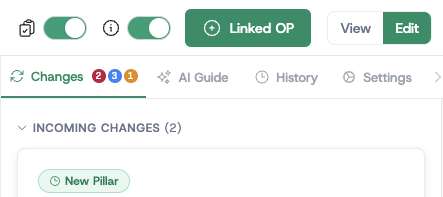
- Incoming changes are in the red circle. They indicate the number of changes coming from a superior one-pager that need to be accepted to reflect in your one-pager.
- Outgoing changes are in the blue circle. They indicate the number of changes you are making in your one-pager that are queued to be cascaded down to your linked one-pagers.
- Pending acceptance are in the orange circle. They indicate the number of changes you have already cascaded that are not yet accepted by your linked (inferior) one-pagers.
Attention badge on the Edit button
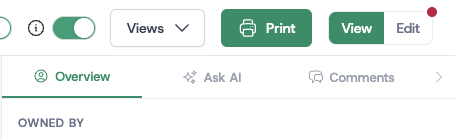
While viewing a one-pager, a small red dot appears on the Edit segment of the View/Edit toggle whenever there is cascade activity you can act on from Edit mode. It is a hint to switch to Edit and open the Changes tab.
The badge mirrors the Incoming changes and Outgoing changes indicators described above — if either would be non-zero once you enter Edit, the dot is visible in View.
Pending acceptance changes do not light up the badge. Those are waiting on the linked (inferior) one-pager to act, so there is nothing for you to do on this one-pager. The dot is only shown when you have something to accept, reject, cascade, discard, or confirm.
The badge does not appear if you do not have permission to edit the one-pager.