Overview
Tags are short labels you attach to one-pagers to group and find them later — for example priority, q2, customer-facing, or a team name. Once a one-pager is tagged, you can filter the strategy down to just the one-pagers carrying a given tag.
Tags are organization-wide: a tag you create is added to a shared pool and can be reused by anyone in your organization. This keeps tagging consistent — everyone picks from the same set instead of inventing slightly different spellings of the same idea.
Adding tags to a one-pager
- Open the one-pager and click Edit.
- Click + Add tag, just below the one-pager's title.
- Start typing in the Search or create a tag… box. As you type, Alaigned suggests matching tags that already exist, each with a count of how many one-pagers already use it (for example
priority (12)).- To reuse an existing tag, pick it from the suggestions.
- To create a new tag, type the full name and choose the Create "…" option.
- The tag is attached to the one-pager immediately — there is no separate save step.

Tag name rules
Tag names can contain lowercase letters, numbers, dots, and hyphens only, and must be between 1 and 45 characters. Spaces and uppercase letters are not allowed — use hyphens instead (customer-facing, not Customer Facing). If you type a character that isn't allowed, the suggestion list tells you why.
Removing a tag
In edit mode, each tag on the one-pager carries a small ×. Click it to detach the tag from that one-pager. Removing a tag from one one-pager does not delete it from the organization-wide pool — other one-pagers keep it, and you can re-add it later.
Filtering by tags
A tag filter lets you narrow what you see to one-pagers carrying specific tags. It is available in several places:
- The Strategy one-pager list
- The Home page
- Search results
- The Strategy Evaluation Report
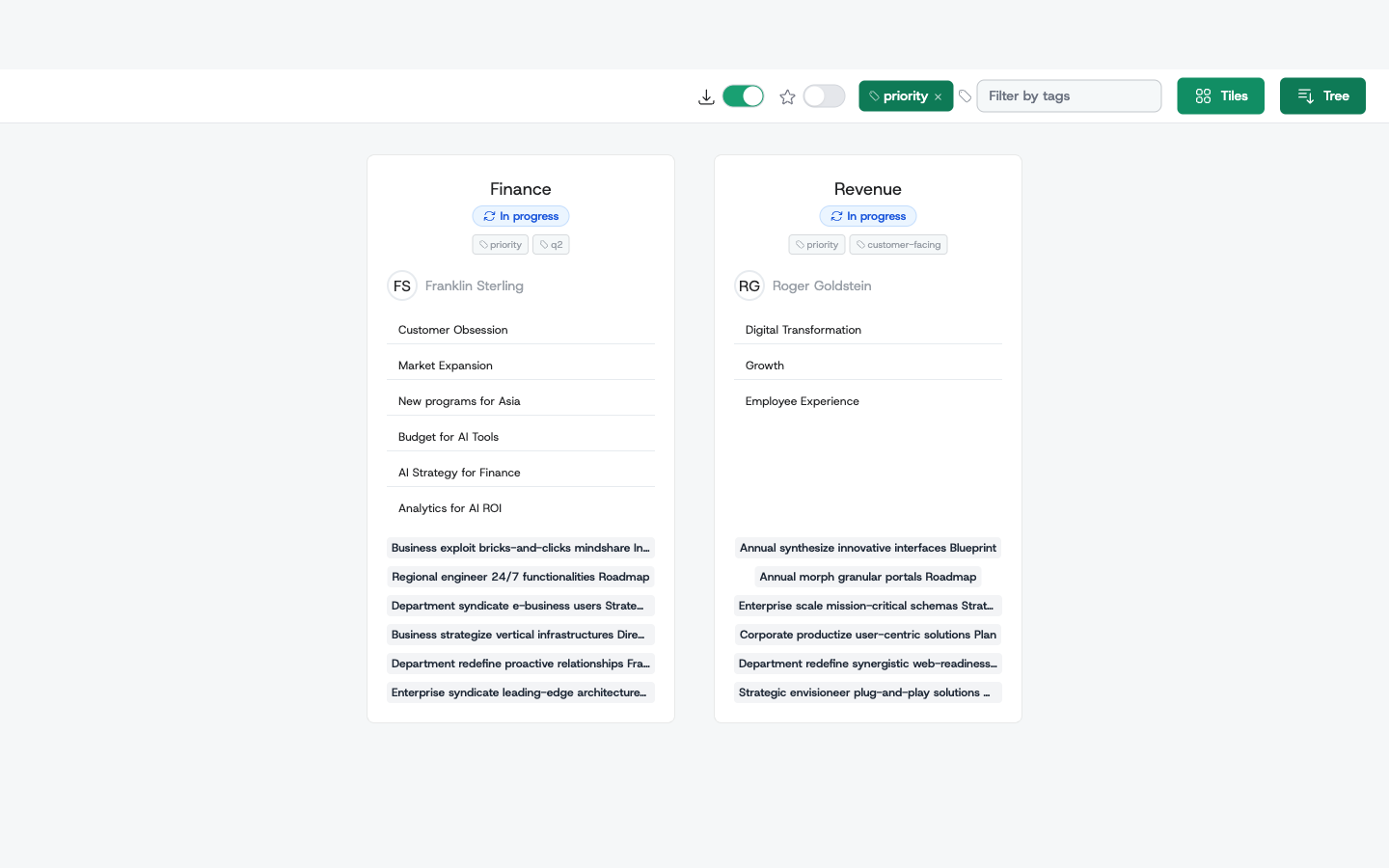
Click + Filter by tag and pick one or more tags from the dropdown. Each selected tag appears as a pill next to the control; click a pill's × to drop that tag from the filter.
When you select more than one tag, they combine with AND — a one-pager must carry all of the selected tags to appear. For example, filtering by priority and q2 shows only the one-pagers tagged with both, not either one alone.
Sharing a filtered view
The tag filter is saved in the page's web address. Once you have filtered to the tags you want, copy the URL from your browser and share it — whoever opens the link lands on the same filtered view. This makes tags a quick way to point a colleague at a specific slice of the strategy, such as "all the customer-facing initiatives".