Overview
The Template Editor is an admin-only feature that allows you to customize how one-pager fields are displayed and behave across your organization. It provides two main capabilities: editing field labels and configuring read-only fields.
Access: Template Editor is available only to administrators in the Admin UI, accessible through the company profile page.
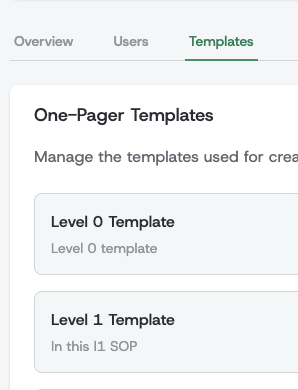
Label Editing
Customize Field Names
You can rename any one-pager field to better match your organization's terminology and culture. This helps create more meaningful and relatable strategic documentation.
Common Examples
- "Values" → "Company DNA"
- "Purpose" → "Why We Exist"
- "Mission" → "Our Mission Statement"
- "Pillars" → "Strategic Themes"
- "Enablers" → "Key Capabilities"
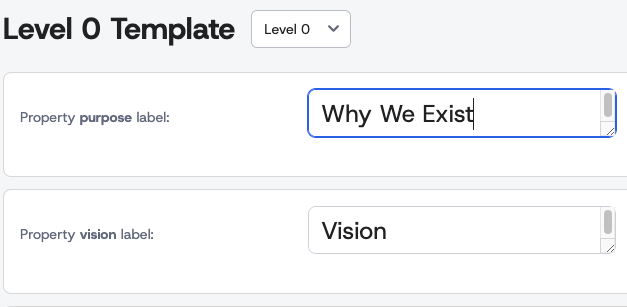
How to Edit Labels
- Navigate to Admin UI → Company Profile → Templates tab
- Select the level you want to edit template for
- Click on the label text field and enter your preferred name
- Save changes you don't have to save changes, just go and see your one-pagers!
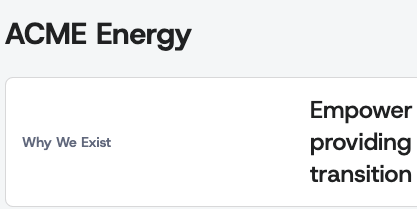
Best Practice: Choose labels that resonate with your company culture and are immediately understood by all team members. Avoid jargon or terms that might confuse new employees.
Read-Only Field Configuration
Purpose
Read-only fields can only be modified through propagations from superior one-pagers. This ensures critical strategic elements remain consistent throughout your organizational hierarchy while allowing for controlled cascading of changes.
How Read-Only Fields Work
When a field is configured as read-only:
- Editors cannot directly change the field content in the one-pager
- Content can only be updated when propagated from a superior one-pager and accepted
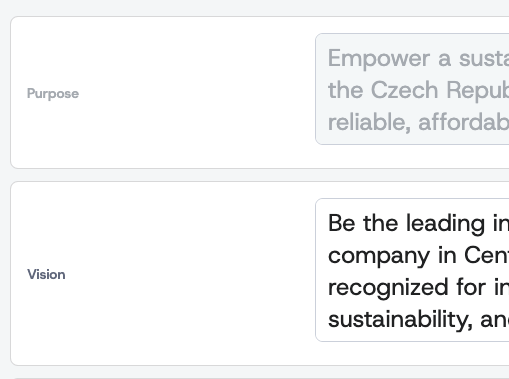
- Field appears grayed out or disabled in the editing interface
- Maintains strategic alignment by preventing unauthorized changes to cascaded content
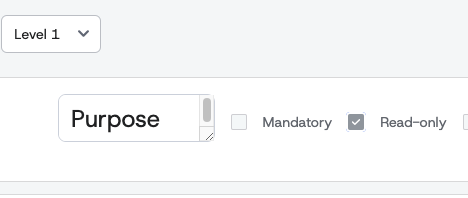
Common Read-Only Use Cases
Recommended for read-only configuration:
- Purpose, Mission, Vision on lower-level one-pagers (controlled at company level)
- Pillar names on team one-pagers (propagated from superior initiative names)
- Success definitions of pillars (propagated from superior initiative goals)
- Strategic themes that should remain consistent across departments
Not recommended for read-only:
- Values on company-level one-pagers (should be editable at the source)
- Local initiatives that teams need to customize for their specific context
- Metrics and KPIs that vary by department or team
Read-only fields are greyed-out for collaborators in edit mode
Configuring Read-Only Fields
- Access Template Editor through Admin UI → Company Profile
- Locate the field you want to make read-only
- Toggle the "Read-Only" checkbox for that field
Best Practices
Use read-only fields when:
- Strategic consistency is critical across the organization
- Content should only change through formal cascading processes
- You want to prevent accidental modifications to key strategic elements
Avoid read-only fields when:
- Teams need flexibility to adapt content to their specific context
- The field represents local decisions or metrics
- Over-restriction could hinder effective strategy execution
Important: Be strategic about read-only configuration. Over-restricting fields can make one-pagers less useful for teams, while under-restricting can lead to inconsistent messaging across the organization.
Managing Template Changes
Impact on Existing One-Pagers
- Label changes are applied immediately across all existing one-pagers
- Read-only configuration affects editing behavior but doesn't change existing content
Reverting Changes
- Label changes can be reverted at any time by editing the label again
- Read-only settings can be toggled on or off as organizational needs change
- No content is lost when configuration changes are made
Template customization helps create a strategic planning experience that feels native to your organization's culture and processes.