Overview
Alaigned provides two AI-powered features to enhance your strategic planning experience. Each appears as a tab in the one-pager sidebar — but in a different mode: AI Guide while you're editing a one-pager, and Ask AI while you're viewing one. They offer different types of assistance depending on your role and needs.
⚠️ Beta Features: Both AI capabilities are currently in beta. While they provide valuable assistance, please be aware of the following limitations:
- Limited Context Window: The AI can only process a limited amount of information at once, which may affect its understanding of complex, large one-pagers
- Response Quality: Answers may occasionally be less sophisticated or miss nuances in your specific strategic context
- Context Understanding: The AI might not always fully grasp the complete organizational context or industry-specific requirements
We're continuously improving these features based on user feedback and expect significant enhancements in future releases.
Where to find it
Both assistants live in the one-pager sidebar, in different modes:
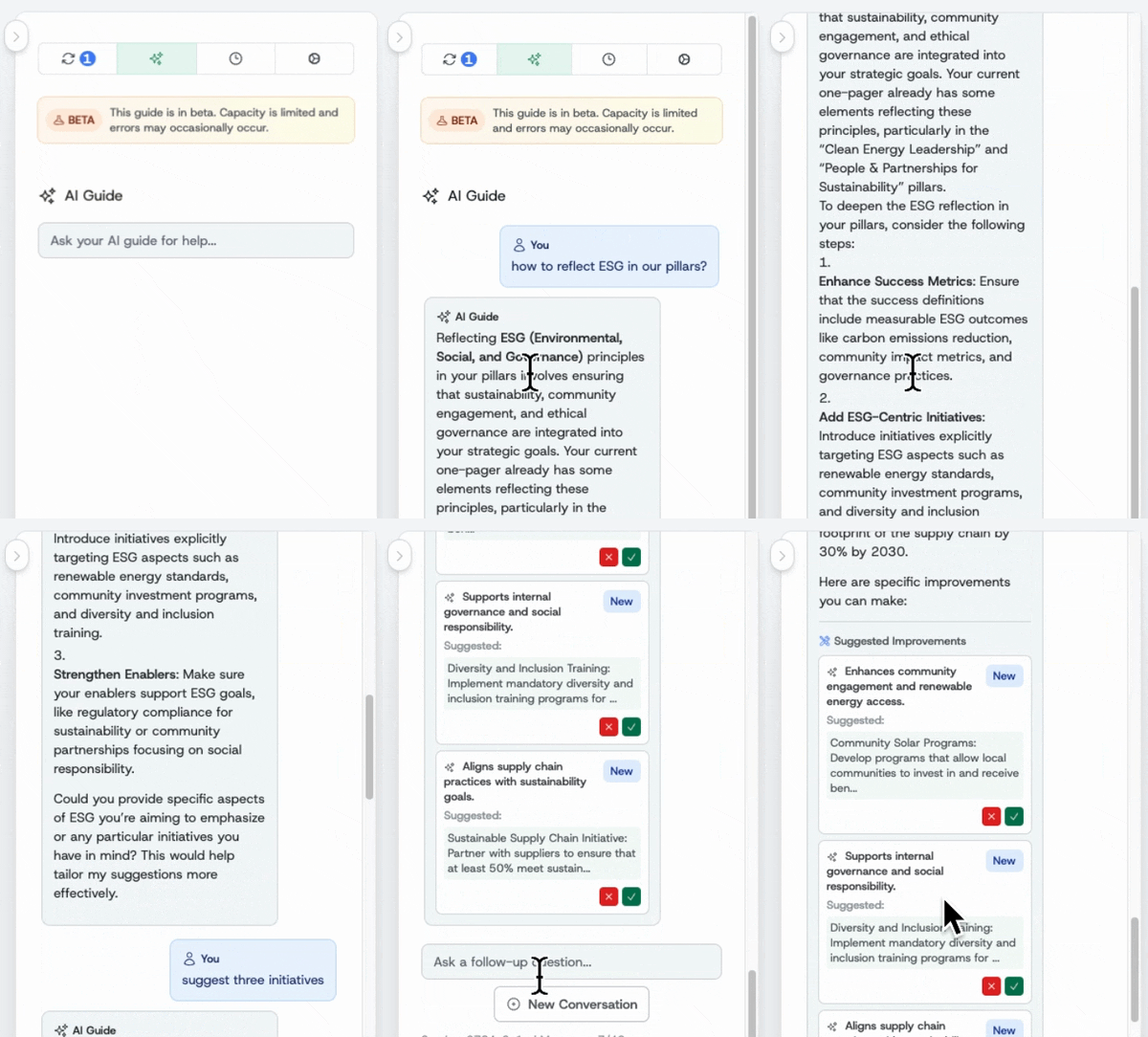
- AI Guide — open a one-pager and click Edit; the AI Guide tab appears in the sidebar.
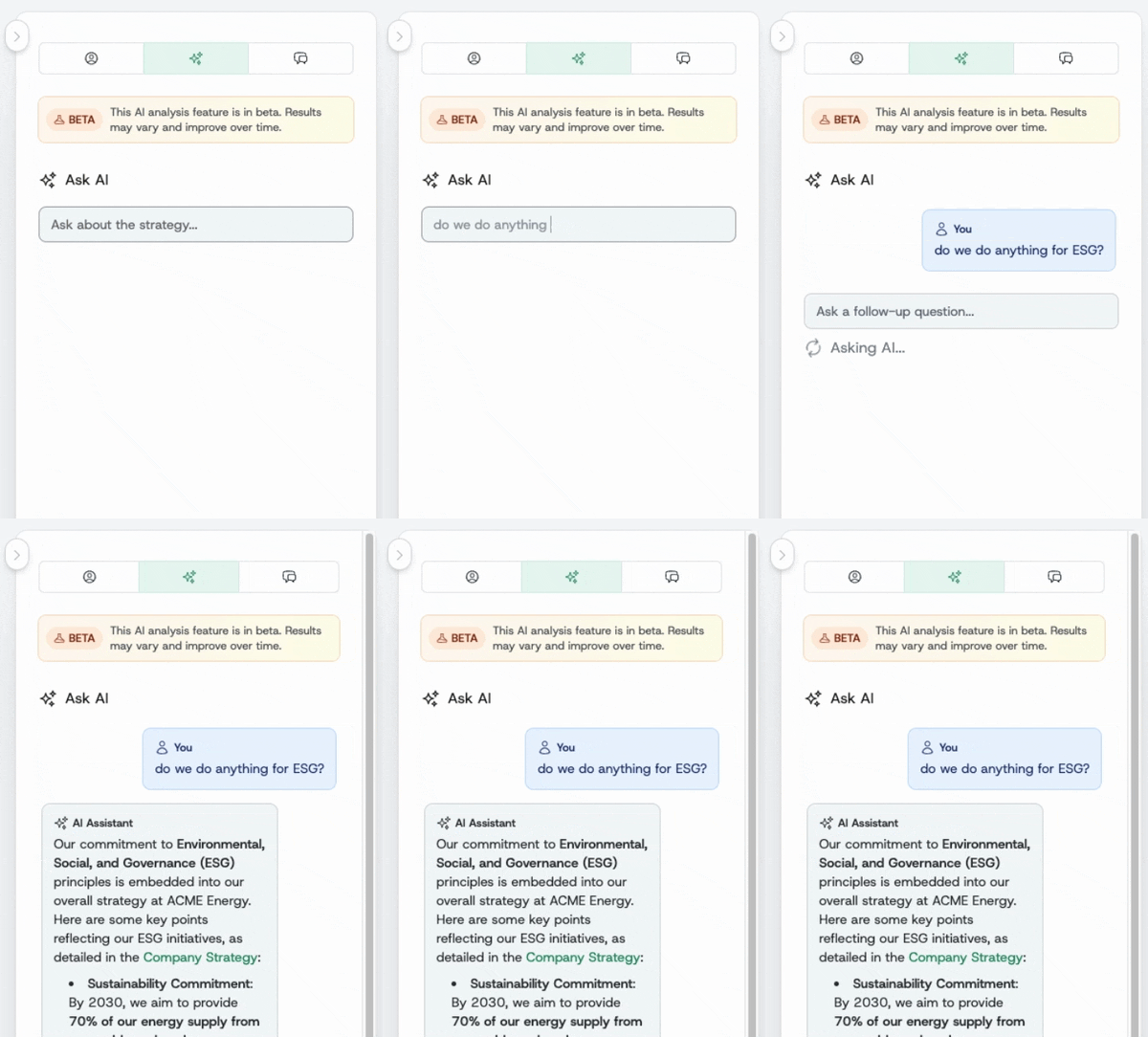
- Ask AI — open a one-pager in view mode; the Ask AI tab appears in the sidebar.
AI Guide - Strategic Copilot
The AI Guide acts as your strategy copilot, helping you create and improve one-pagers through expert guidance and actionable suggestions.
What AI Guide Does
- Strategic Coaching: Provides methodology guidance on how one-pagers should be created and structured
- Content Improvement: Offers specific suggestions to make your strategy documentation clearer and more actionable
- Alignment Assessment: Evaluates whether goals and success criteria are properly formulated, measurable, and realistic
- Cascading Advice: Recommends what strategic elements should be cascaded to which teams
Common Use Cases
The AI Guide excels at helping with requests like:
- "What are the three top improvements you would suggest?"
- "Help me improve the wording of our mission statement"
- "How can we make our strategic pillars more actionable?"
- "We need to add a new strategic pillar focused on sustainability - can you help?"
- "Can you suggest some additional company values that would strengthen our culture?"
Actionable Improvements
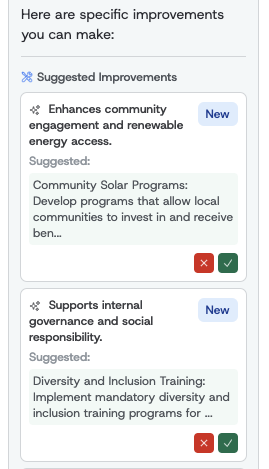
When AI Guide identifies opportunities for enhancement, it provides actionable improvements that appear as interactive suggestions. You can review these suggestions and apply them directly to your one-pager with a single click.
Best Practice: Use AI Guide when you're actively editing or creating strategic content and want expert feedback on structure, clarity, and strategic alignment.
Ask AI - Strategy Understanding
The Ask AI feature serves as your strategy interpreter, helping employees at all levels understand how they can contribute to and align with existing company strategy.
What Ask AI Does
- Strategy Explanation: Answers questions about existing strategy as documented in your one-pagers
- Alignment Guidance: Helps employees understand how their role connects to broader strategic objectives
- Priority Clarification: Explains strategic priorities and how different teams should focus their efforts
- Cross-Reference: Creates links to relevant one-pagers for deeper context and exploration
Common Use Cases
Ask AI is designed to handle questions like:
- "I am from IT department, how best can I contribute to our strategy?"
- "How should I prioritize my work to best support our product strategy?"
- "What are our product priorities?"
- "What steps should I take to align my team with our revenue goals?"
- "I'm struggling to see how my role connects to our overall mission - can you help?"
Strategy Navigation
Ask AI automatically creates links to relevant one-pagers throughout its responses, making it easy to dive deeper into specific strategic areas that matter to your role.
Best Practice: Use Ask AI when you need to understand existing strategy rather than change it. It's perfect for team members who want to align their work with company goals.
Getting Started
The two assistants live in different modes of the one-pager sidebar:
- To use AI Guide, open a one-pager and click Edit. The sidebar shows the AI Guide tab, alongside Changes, History, and Settings.
- To use Ask AI, open a one-pager in view mode (without editing). The sidebar shows the Ask AI tab, alongside Overview and Comments.
Once you're on the right tab, start the conversation by asking specific questions about your strategic needs.
Both AI features are context-aware and will reference the one-pager you're currently viewing to provide relevant, targeted assistance.
Disabling AI for your organization
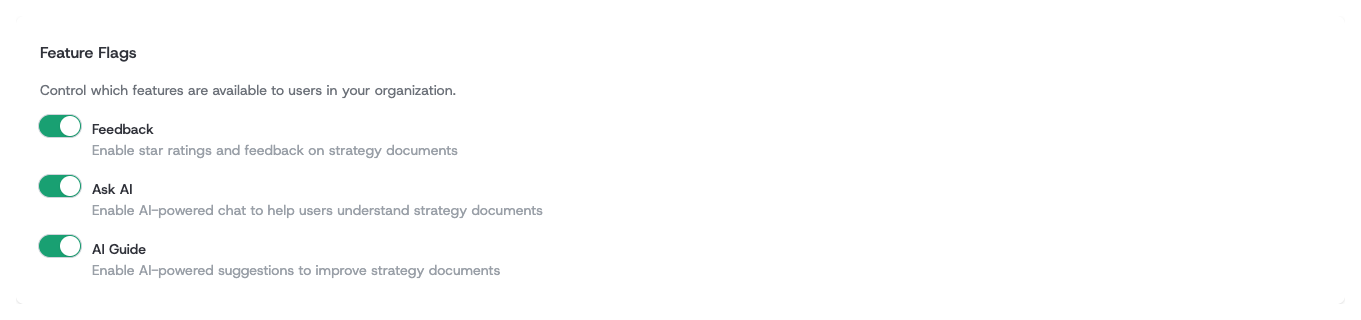
Both AI features are on by default. An administrator can turn either one off for the whole organization — for example, while AI adoption is still being evaluated, or to roll the two features out at different times.
In the organization admin area, open Company Profile → Overview tab → Feature Flags, then toggle Ask AI or AI Guide. Each toggle takes effect immediately for every user in the organization.
The same section holds AI assistant connections, the switch for connecting Claude or ChatGPT to the workspace. Unlike the two features above it is off until you turn it on — see Connect your AI assistant.