Overview
Every one-pager follows a planning lifecycle with four statuses:
Not started → In progress → Pending approval → Approved
The status badge appears at the top of the one-pager, next to its transition buttons, so everyone can see where it stands. It can also be shown on every card in the tree view — see Status badges in the tree view. Some status changes happen automatically (for example, when you start editing), while others require a deliberate action (requesting or granting approval).
Status meanings
| Status | Badge | What it means |
|---|---|---|
| Not started |  | The one-pager exists but no work has been done yet |
| In progress |  | The owner is actively working on the content |
| Pending approval |  | The owner has requested approval; waiting for the supervisor to review |
| Approved |  | The supervisor has reviewed and approved the content |
Automatic status changes
In three situations the status changes on its own, without anyone clicking a button:
-
First edit or accepting a cascade — A "Not started" one-pager moves to "In progress" as soon as the owner begins editing or accepts cascaded content from a superior one-pager.
-
Editing an approved one-pager — If anyone edits the content of an "Approved" one-pager, it automatically reverts to "In progress". This prevents stale content from staying marked as approved. The owner will need to go through the approval flow again.
-
Receiving new cascaded changes — When a superior one-pager pushes new changes down to a linked one-pager that is "Pending approval" or "Approved", the linked one-pager reverts to "In progress". This ensures that new upstream changes are incorporated before the one-pager can be considered complete.
Requesting approval
When you have finished filling in your one-pager, you can request approval from your supervisor by clicking the  button next to the status badge.
Before requesting approval, a few content conditions are checked. These are shown as advisory suggestions in a tooltip when you hover over the button:
- Every required field is filled in — which fields are required depends on your organization's template. By default this includes every pillar's name, every initiative's name, and every initiative's goal; an administrator can mark any field as required in the Template Editor.
- Every pillar has at least one initiative — no empty pillars.
- All incoming changes are accepted or rejected — no cascaded changes from the superior one-pager are still pending.
These conditions are advisory only — the button is always clickable. The tooltip helps you understand what might still need attention, but does not prevent you from submitting the request.
Approving or rejecting
Once an owner requests approval, the one-pager enters the "Pending approval" state. Three roles can act on it:
- Supervisor — an owner of the superior one-pager in the hierarchy. Owners can approve anything in their own branch of the strategy without needing organization-wide rights.
- Program Manager — can approve (and lock) one-pagers across the organization, without full administrator rights.
- Admin — any user with enterprise admin permissions.
For top-level (L0) one-pagers that have no superior, only a program manager or an admin can approve.
Whoever can approve sees two buttons next to the status badge:
 — marks the one-pager as approved. The same advisory suggestions tooltip is shown on hover so the approver can check content completeness before approving.
 — sends the one-pager back to "In progress" for rework
After rejection, the owner can continue editing and request approval again when ready.
Revoking approval
Once a one-pager has been approved, the approval can be revoked by clicking the  button next to the status badge. This sends the one-pager back to "In progress".
Revoking approval is useful when content needs to be revisited — for example, if strategic priorities have changed or if the approval was granted prematurely. After revoking, the owner can make changes and request approval again.
Admin approvals tab
Enterprise admins and program managers have access to a dedicated Approvals tab in the organization admin section (also reachable via Admin → One-pager Approvals in the top bar). This tab provides a hierarchical tree view of the active strategy version's one-pagers with their current statuses (the version's name is shown above the tree), allowing them to:
- Approve or Revoke individual one-pagers
- Approve all linked — approve an entire subtree of one-pagers at once
- Revoke all linked — revoke approval for an entire subtree at once
This gives admins a centralized overview of planning progress across the entire organization.
Locking one-pagers
Once one-pagers are complete, you may want to keep them visible to everyone while preventing any further edits — for example, after the strategy has been finalized for the year. Locking does exactly that: a locked one-pager stays fully readable, but its content can no longer be changed.
The Approvals tab also hosts the lock controls:
- Lock / Unlock — toggle the lock on an individual one-pager
- Lock all linked — lock an entire subtree of one-pagers at once
- Unlock all linked — unlock an entire subtree at once
In the Approvals tab, a locked one-pager shows a small padlock next to its title, and its Lock button becomes Unlock.
Administrators and program managers can lock or unlock any one-pager; an owner can lock the one-pagers they own and everything beneath them. Individual one-pagers can also be locked from the Settings tab of the insight bar on the one-pager itself — see One-Pager Locking.
Status badges in the tree view
The tree view can show a compact status badge on every one-pager card, giving you a quick overview of planning progress across the whole hierarchy — at a glance you see which teams haven't started, which are working, which are waiting for review, and which are done.
This is switched off by default. To turn it on, open the Layers menu in the context bar above the tree and enable Document status:
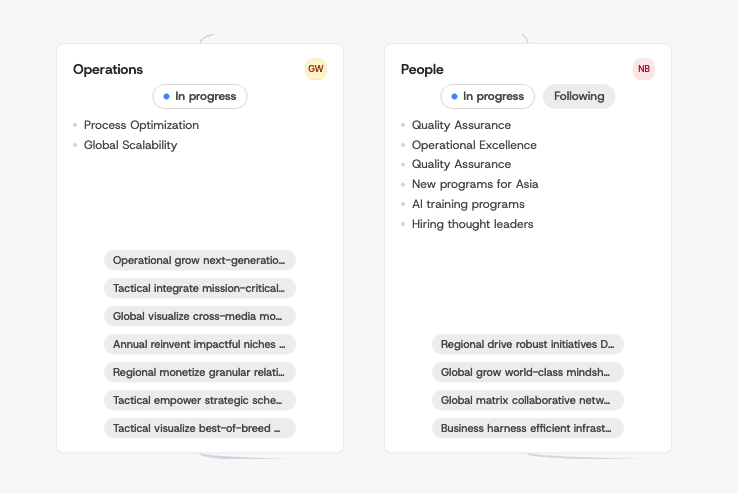
Your choice is remembered, so the tree keeps showing (or hiding) the badges the next time you visit.