Overview
The Template Editor is an admin-only feature that allows you to customize how one-pager fields are displayed and behave across your organization. It supports editing field labels, marking fields as mandatory for the Strategy Completion Report, and configuring read-only fields.
Where to find it
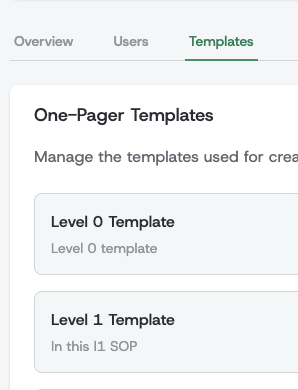
Top nav → Admin → Company Profile → Templates tab. The Template Editor is available to administrators only.
Per-Strategy-Version Templates
Each strategy version has its own templates. Changes you make in the Template Editor affect only the strategy version you are currently editing — other strategy versions keep their own customizations unchanged.
When your organization has more than one strategy version, a version switcher at the top of the editor lets you choose which version's templates to edit. By default you start on the active strategy version; you can switch to any other version using the dropdown. With only one version, no switcher appears — you simply edit that version's templates.
When you create a new strategy version by cloning from the active one, its templates are cloned too — so the new strategy version starts with the same labels and read-only settings as the source. After cloning, each strategy version can be customized independently.
Label Editing
Customize Field Names
You can rename any one-pager field to better match your organization's terminology and culture. This helps create more meaningful and relatable strategic documentation.
Common Examples
- "Values" → "Company DNA"
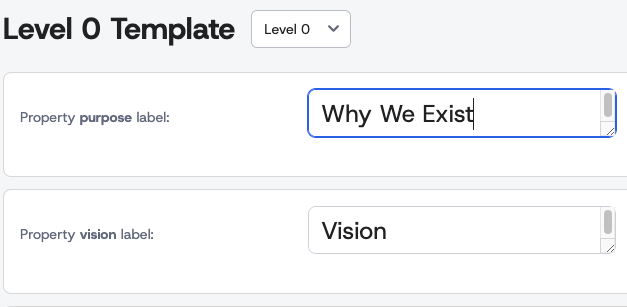
- "Purpose" → "Why We Exist"
- "Mission" → "Our Mission Statement"
- "Pillars" → "Strategic Themes"
- "Enablers" → "Key Capabilities"
How to Edit Labels
- Navigate to Admin UI → Company Profile → Templates tab
- Select the level you want to edit template for
- Click on the label text field and enter your preferred name
- Save changes you don't have to save changes, just go and see your one-pagers!
Singular and plural labels
Sections that hold a list — Pillars, Initiatives, Enablers, Values — carry two labels, and the editor exposes both. Under the section's own row you'll find a nested Property item label: row for the name of a single entry:
Property pillars label:→ Strategic Themes (the section heading)Property item label:→ Strategic Theme (one entry in it)
Set both, or the interface ends up asking you to "add new Strategic Themes" one at a time. If your organization renames Pillars to "Bets", the singular should read "Bet" — the app uses it wherever it refers to a single item.
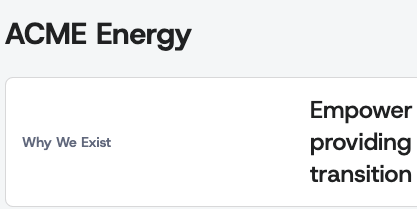
Best Practice: Choose labels that resonate with your company culture and are immediately understood by all team members. Avoid jargon or terms that might confuse new employees.
Mandatory Field Configuration
Purpose
Mandatory fields are flagged in the Strategy Completion Report when they are left empty. Use this to set expectations for what every one-pager at a given level must contain before it can be considered ready.
How Mandatory Fields Work
When a field is configured as mandatory:
- The Strategy Completion Report counts any one-pager whose value is missing or whitespace-only as having an "Empty Mandatory Fields" issue.
- The field stays visible in view mode even when empty. Non-mandatory fields disappear from the one-pager's read-only view when blank, but mandatory fields keep their label and an empty body so readers can see what's still missing. Applies to core fields (Purpose, Mission, etc.), pillar success definitions, the Narrative section in the side panel, and an initiative's Goal in the initiative detail modal.
- Inactive fields are excluded. A field whose Active checkbox is off is never flagged or shown, even if Mandatory is on.
Default Mandatory Fields
Out of the box, the following fields are mandatory:
- L0: Purpose, Vision, Mission, Company Ambition
- L1 / L2: Team Ambition
- L3: none
You can change any of these defaults — toggle Mandatory off for a field your organization treats as optional, or toggle it on for fields that should always be filled in (e.g., Narrative, a pillar's Name, an initiative's Goal).
Configuring Mandatory Fields
- Access Template Editor through Admin UI → Company Profile → Templates tab
- Select the level you want to configure
- Toggle the "Mandatory" checkbox for the field you want to require or relax
Changes take effect immediately for the strategy version you are editing. The Strategy Completion Report will reflect the new policy on its next view.
Read-Only Field Configuration
Purpose
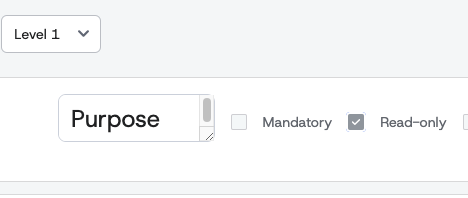
Read-only fields can only be modified through cascades from superior one-pagers. This ensures critical strategic elements remain consistent throughout your organizational hierarchy while allowing for controlled cascading of changes.
How Read-Only Fields Work
When a field is configured as read-only:
- Editors cannot directly change the field content in the one-pager
- Content can only be updated when cascaded from a superior one-pager and accepted
- Field appears grayed out or disabled in the editing interface
- Maintains strategic alignment by preventing unauthorized changes to cascaded content
Common Read-Only Use Cases
Recommended for read-only configuration:
- Purpose, Mission, Vision on lower-level one-pagers (controlled at company level)
- Pillar names on team one-pagers (cascaded from superior initiative names)
- Success definitions of pillars (cascaded from superior initiative goals)
- Strategic themes that should remain consistent across departments
Not recommended for read-only:
- Values on company-level one-pagers (should be editable at the source)
- Local initiatives that teams need to customize for their specific context
- Metrics and KPIs that vary by department or team
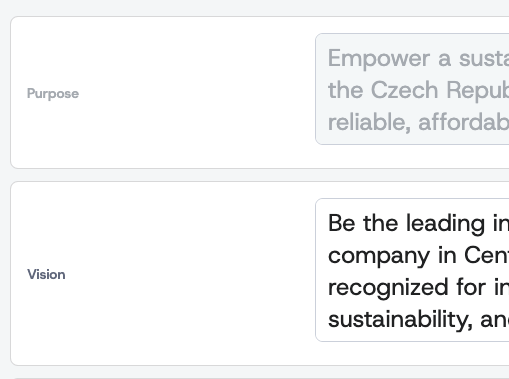
Read-only fields are greyed-out for collaborators in edit mode
Configuring Read-Only Fields
- Access Template Editor through Admin UI → Company Profile
- Locate the field you want to make read-only
- Toggle the "Read-Only" checkbox for that field
Best Practices
Use read-only fields when:
- Strategic consistency is critical across the organization
- Content should only change through formal cascading processes
- You want to prevent accidental modifications to key strategic elements
Avoid read-only fields when:
- Teams need flexibility to adapt content to their specific context
- The field represents local decisions or metrics
- Over-restriction could hinder effective strategy execution
Important: Be strategic about read-only configuration. Over-restricting fields can make one-pagers less useful for teams, while under-restricting can lead to inconsistent messaging across the organization.
Managing Template Changes
Impact on Existing One-Pagers
- Label changes are applied immediately across all existing one-pagers in the strategy version you are editing. One-pagers in other strategy versions are unaffected.
- Mandatory configuration changes show up in the Strategy Completion Report on next view; existing content is not modified.
- Read-only configuration affects editing behavior in the current strategy version but doesn't change existing content.
Reverting Changes
- Label changes can be reverted at any time by editing the label again
- Mandatory and Read-only settings can be toggled on or off as organizational needs change
- No content is lost when configuration changes are made
Template customization helps create a strategic planning experience that feels native to your organization's culture and processes.