Overview
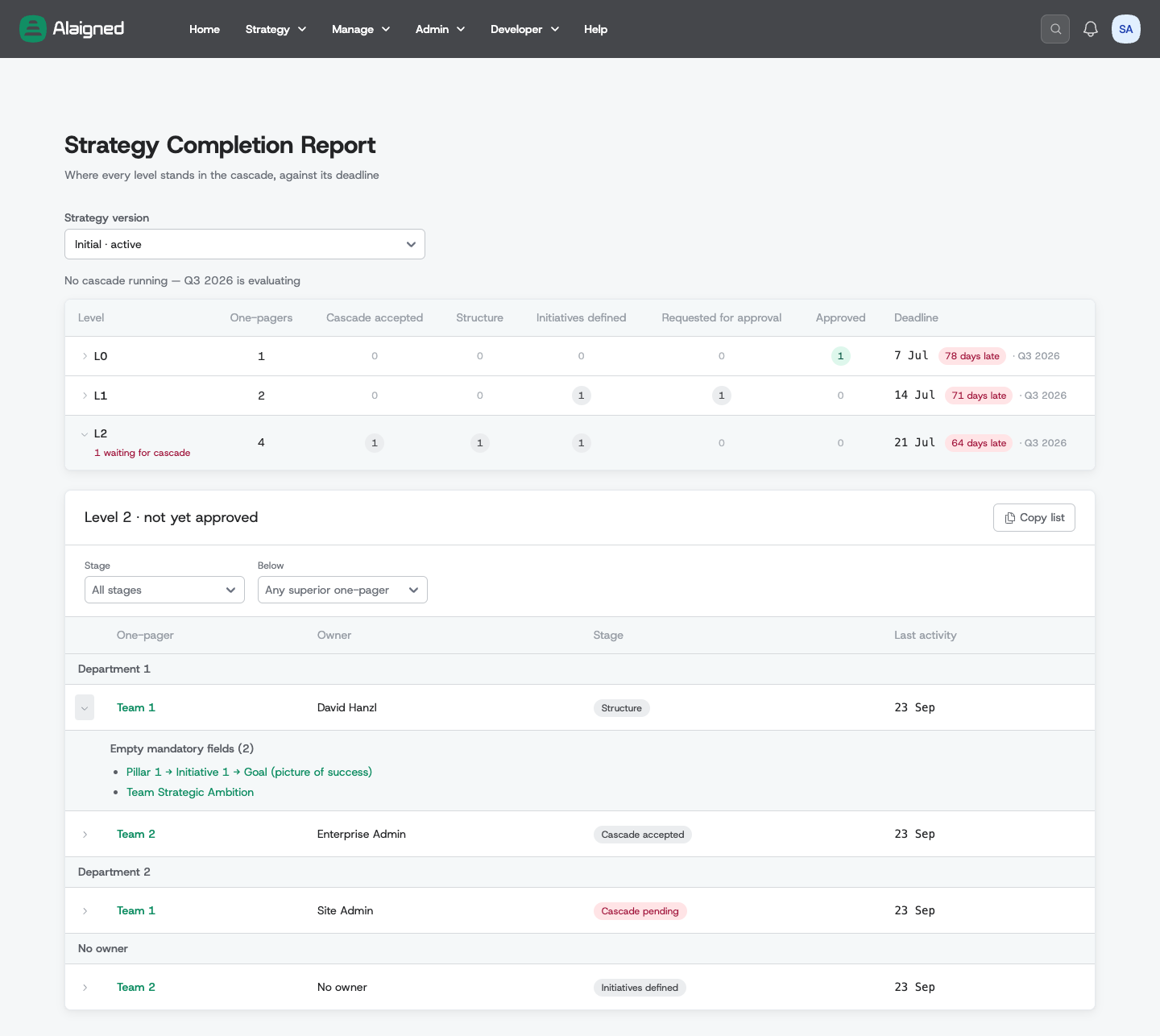
The Strategy Completion Report shows, for every level of your strategy, how far the cascade has come. For each level it counts how many one-pagers stand in each of three stages — from accepting what was cascaded to them to having their initiatives defined — shows beside them how many are requested for approval and approved, and sets that against the level's cascade deadline from the governance calendar.
Click a level to see which of its one-pagers are not approved yet, who owns them, what is still missing, and copy the list to follow up with the teams.
Where to find it
Top nav → Manage → Completion Report.
Required Permission: Users need the reports:view permission to access this report. This permission is assigned to both admin roles and the one-pager-owner role, so anyone who owns a one-pager can access reports.
Data Visibility
What you see in the report depends on your role:
- Admins (users with
enterprises:managepermission) see all one-pagers across the organization. - One-Pager Owners see only their owned subtree — the one-pager they own and every one-pager linked below it. If you own several one-pagers, the Viewing subtree for dropdown lets you switch between them.
- No Ownership — if you have
reports:viewbut don't own any one-pagers, you'll see an empty state prompting you to contact your admin.
The same table, for the whole company, sits on the Strategy Governance page — see Follow the cascade.
Which strategy version
The report reads one strategy version at a time. By default it shows the version planned for the current strategy period, when one is set — during the annual cascade that is usually next year's draft — and otherwise the active version.
When your organization has more than one strategy version, a Strategy version dropdown above the table lets you pick another one. The active version is marked · active, and the version planned for the current period is marked · planned for followed by the period's name. Archived versions are not listed. Owners keep looking at the same part of the hierarchy when they switch versions.
The three stages
Every one-pager stands in exactly one stage. Under Stages, the table has one column per stage:
| Stage | A one-pager is here when… |
|---|---|
| Cascade accepted | Nothing cascaded from its superior one-pager is waiting to be accepted |
| Structure | It has at least one pillar, and every pillar has at least one initiative and at least one success definition filled in (one of the two is enough) |
| Initiatives defined | Every initiative has a goal, and every linked one-pager below it has received at least one cascade from it |
A one-pager stands in the highest stage whose conditions — and the conditions of every earlier stage — hold. A one-pager whose initiative goal was cleared therefore counts under Structure until the goal is filled in again. The stages are formal checks only: they say whether something is there, never whether it is good.
A one-pager with no linked one-pagers below it has nothing to cascade, so it reaches Initiatives defined once its goals are filled in: not cascading further is never a finding. Parts of the one-pager that your organization's template switches off for that level are not counted — a pillar whose two success definitions are both switched off does not need one.
L0 has no superior one-pager, so the first stage does not apply to it: its Cascade accepted cell reads —, and the L0 one-pager counts from Structure on. Only while it does not have its structure yet is it counted in the Cascade accepted column.
These are the definitions confirmed on 24 September 2026.
Approval
Approval is not a stage. Under Approval, marked informational, the table shows two counts per level:
- Requested for approval — one-pagers whose owner has requested approval (status Pending approval).
- Approved — one-pagers that are approved.
These counts never hold a one-pager back, and a one-pager's stage does not depend on them: a one-pager requested for approval or approved stands in the stage its content reaches, like any other.
Cascade pending
One-pagers that still have a cascade waiting to be accepted have not reached the first stage yet. They are not a column: the table shows them as a red note under the level, such as 1 waiting for cascade, and in the drill-down their stage reads Cascade pending.
Deadlines
The Deadline column shows, for each level, the date by which its cascade should be finished. The dates come from the governance calendar:
- L0 — the end of the L0 update, the day the updated company one-pager should be approved (the anchor).
- L1 and below — the end of the level's cascade window.
Next to the date:
- n days left — the count includes today.
- n days late — the day the window ends is already the first late day, so on that day the level reads 1 day late. Late deadlines are red.
- the name of the strategy period the deadline belongs to.
When every one-pager of a level is approved, its deadline stays visible but is no longer marked red.
A line above the table says whether a cascade is running today — Cascade running — followed by the period's name — or not, for example No cascade running — Q3 2026 is evaluating. When the current period only evaluates, because the previous cascade was still running when it began, the deadlines are those of the previous period's cascade; the period name next to each date tells you which.
The deadline reads — when no cascade is planned for that level, or when your role cannot see the governance calendar. In the second case the status line is not shown either.
Drilling into a level
Click a level's row to open Level n · not yet approved below the table. It lists that level's one-pagers that are not approved yet, whatever their stage — a one-pager that reached Initiatives defined but still waits for approval is listed, and its stage shows its content is done. An approved one-pager is not listed even if its content is incomplete: whoever approved it was warned about the empty mandatory fields, and that decision stands.
- Grouped by superior one-pager — each group is titled with the name of the one-pager above. L0 one-pagers are listed under Top level.
- No owner — one-pagers without an accountable owner are pulled out of their groups into a last group, so they are easy to spot.
- For each one-pager: its name (a link to it), Owner, Stage and Last activity (the day it was last changed).
Click the row again to close the drill-down.
Filters
Above the list:
- Stage — show only one-pagers in one stage, or those still waiting for a cascade (Cascade pending).
- Below — show only one-pagers under a chosen one-pager of a higher level. Shown for levels below L0.
- Tags — show only one-pagers carrying every selected tag (all of them, not any of them). Shown when the listed one-pagers have tags.
If the filters hide every one-pager, the list says so; if every one-pager of the level is approved, it says Every one-pager of this level is approved.
Empty mandatory fields
A one-pager with empty mandatory fields has a chevron at the start of its row.
Click it to see every empty mandatory field, labelled so you can tell sibling
fields apart — for example Pillar 1 → Initiative 2 → Goal (picture of success). Each entry is a link that opens the one-pager for editing and
jumps straight to that field. Which fields are mandatory is set per level in
the Template Editor.
Copy list
Copy list copies the one-pagers currently listed — after your filters — to the clipboard, one line each: level, name, owner, stage and a link to the one-pager. Paste it into a message or a meeting agenda to follow up with the teams.
Common use cases
Steering the cascade before a deadline
A few days before a level's deadline, open the level, filter by stage to see who has not accepted the cascade or not defined their initiatives yet, and send the copied list to the owners concerned. Check the No owner group first: nobody will move those one-pagers until someone is made accountable.
Pre-approval check
Before requesting approval, owners open their subtree and expand their one-pager's empty mandatory fields — every link jumps to a field that still needs filling in.
Onboarding new teams
New teams' one-pagers start at the first stages. Follow them through Structure and Initiatives defined; the approval counts beside the stages show when they request approval and are approved.