Overview
Administrators manage their organization's members from the Company Users page. This guide covers two parts of the member lifecycle: inviting people in, and removing accounts safely.
You can add members individually from the Company Users page, or in bulk — see CSV User Import.
Where to find it
Top nav → Admin → Company Users. Managing users is available to administrators only.
Roles
Every member holds one organization role, which sets what they can do across the whole organization:
| Role | What it allows |
|---|---|
| Enterprise Admin | Everything: organization settings, templates, users, strategy versions, and all one-pagers. |
| Program Manager | Steer delivery without full admin rights — approve and lock one-pagers across the organization, manage strategy versions (and create one-pagers, which cloning a version requires), set evaluation statuses, and run reports. Reachable from Admin → One-pager Approvals and Admin → Strategy Versions. |
| Enterprise Collaborator | View, comment on, and rate one-pagers. |
| Enterprise Viewer | View, comment on, and rate one-pagers. |
Collaborators and Viewers cannot edit. Neither role grants editing at the organization level — the difference between them is conventional rather than functional today. Editing comes from owning a one-pager, not from the organization role.
On top of the organization role, a member can be an owner of any number of individual one-pagers. Ownership is what grants editing, approving, locking, and cascading — scoped to that one-pager and everything beneath it. That's why the users list shows One Pager Owner alongside someone's organization role. See One-Pager Owners.
The practical consequence: to let someone work on one team's strategy, make them an owner of that one-pager rather than giving them a broader role.
Seeing who owns which one-pagers
The Company Users list includes an Owned One-Pagers column showing the one-pagers each member owns in the current strategy version. Members can own several one-pagers — the first few are shown as tags, and any remaining ones are collapsed into a +N tag. Hover over a tag to see the one-pager's full title and level.
This makes it easy to spot at a glance who is responsible for what — and who needs an ownership transfer before their account can be removed.
Inviting a member
After a member's account is created, they still need to set a password before they can sign in. Open the member's page from the Company Users list — for anyone who hasn't signed in yet, you'll see two options:
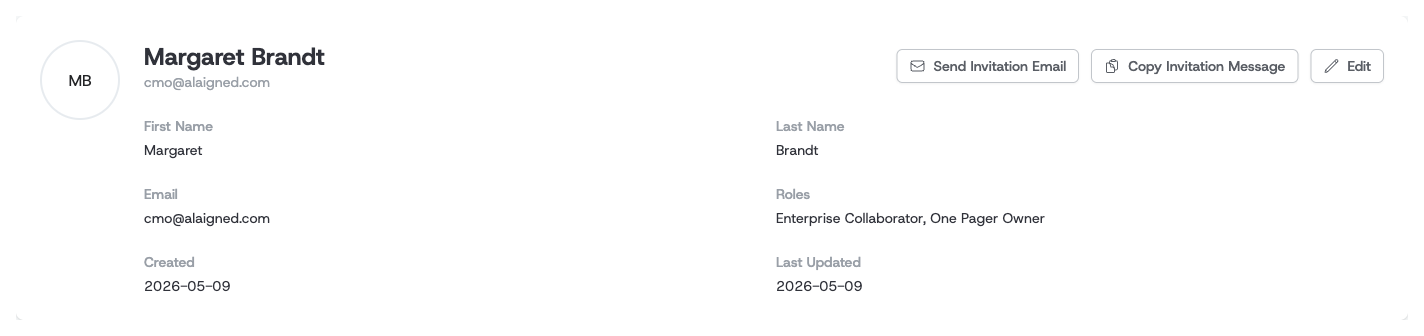
- Send Invitation Email — Alaigned emails the member an invitation with a link to set their password. Use this for a standard hands-off invite.
- Copy Invitation Message — copies a ready-made invitation message (including the set-password link) to your clipboard, so you can send it through your own channel — Slack, Teams, or a personal email.
Both options achieve the same thing; pick whichever fits how your organization communicates. Once the member has signed in, these buttons no longer appear.
Members who sign in through Single Sign-On don't need an invitation — their credentials are managed by your identity provider, so the invitation buttons aren't shown for them.
Removing a member
To remove someone, use the delete action next to their name in the Company Users list. Removal is a soft delete: the account is deactivated and anonymized rather than erased, so historical records stay intact.
Ownership must be transferred first
If the member owns one or more one-pagers, you can't remove them until that ownership is reassigned — every one-pager needs an owner. The delete dialog walks you through it:
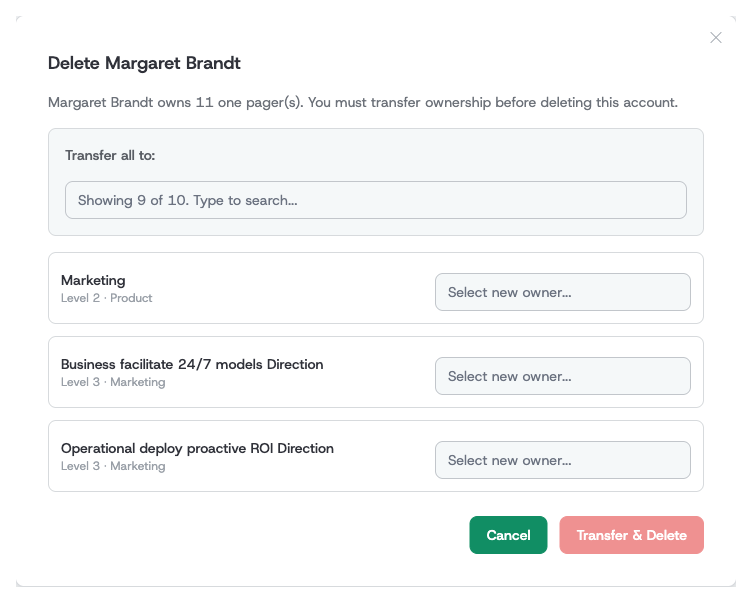
- Use Transfer all to to hand every one-pager to a single colleague at once, or
- Pick a new owner per one-pager for finer control.
Once every one-pager has a new owner, click Transfer & Delete. If the member owns no one-pagers, the dialog is a simple confirmation instead.
You cannot delete your own account, and a member who has already been removed can't be removed again.
After removal
A removed member is deactivated immediately and shown as an anonymized "Deleted User" in places where their name previously appeared. Deleted accounts are hidden from the Company Users list by default — turn on Show deleted to see them.