Overview
You can cascade initiatives and enablers to linked one-pagers, typically owned by teams further down your strategy. Cascading can only be done in Edit mode.
There are two types of cascading:
- Mandatory: creates a top-down cascade from current one-pager to linked one-pagers.
- Voluntary: creates a bottom-up cascade from superior one-pager to current one-pager.
Mandatory cascading
The general principle in mandatory cascading is that nothing happens silently. Every action is explicitly done or accepted by one-pager editors.
Create, cascade, accept
To create a cascade from an item to a linked one-pager, click the item to open it, then use the + Add cascade button under Linked one-pagers and pick the linked one-pager from the list. Creating the cascade establishes the relationship between the item and the linked one-pager, but nothing else happens yet. Each cascade you add appears as a small badge in that Linked one-pagers row. Typically, editors of the one-pager create many cascades from several items to several linked one-pagers, until they are ready for the second step: sending the changes down with Cascade.
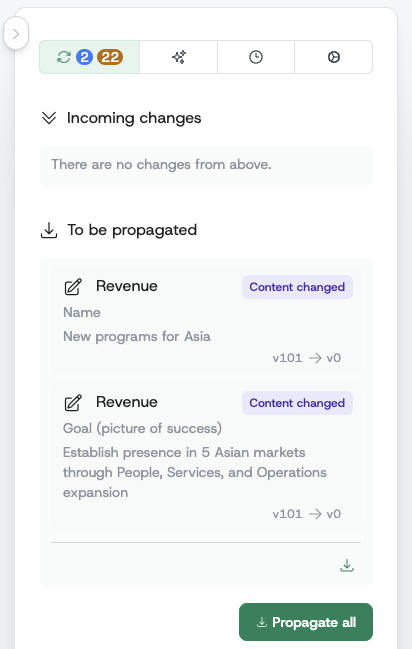
Once the cascades are created, the items appear in the Outgoing changes section of the sidebar, waiting there for an explicit action by editors: Cascade sends a single item down, Cascade all sends everything at once.
Only after an item has been explicitly cascaded does it show up inside the corresponding linked one-pager's sidebar section Incoming changes, waiting there for an explicit accept action by the linked one-pager's editors. Once accepted, the change gets reflected in the one-pager itself.
Editors can accept changes one by one, or use the Accept all button to accept all incoming changes at once. However, Accept all only processes non-destructive changes — cascade removals (deletions) are always skipped and require individual confirmation, because accepting a removal permanently deletes the pillar from your one-pager.
Discarding pending changes
Sometimes you create a cascade or queue a removal and then change your mind before the linked one-pager has accepted it. The Discard button in the Outgoing changes section abandons the pending intent without involving the linked one-pager.
Discard is available for:
- Brand-new cascades you have not sent yet — the linked one-pager has never seen the cascade, so removing it is silent and safe.
- Pending cascade removals — abandons the removal request and keeps the existing cascade in place. (Re-adding the cascade with + Add cascade does the same thing.)
Discard is not available for established cascades that the linked one-pager has already accepted. To remove those, use the cascade-removal workflow described in Removing cascades.
Cascade status indicators

Following the above create-cascade-accept workflow, the one-pager avatars are visualized according to the status of their cascaded items as shown in the above picture.
Tip: You can show or hide these cascade indicators — along with evaluation-status colours and tooltips — from the Layers menu in the context bar at the top of the one-pager. All three are on by default.
If these indicators are displayed without a specific context, they indicate the overall status of the one-pager:
- Editors of the
Productone-pager don't even know about some changes yet because there are changes still waiting to be cascaded to theProductone-pager. - Editors of the
Revenueone-pager received the changes, but didn't accept all of them yet. Thus, these changes are not yet reflected in theRevenueone-pager. - All the changes were cascaded and accepted and thus reflected in the
Financeone-pager.
If these indicators are displayed under a specific item:
- The item has not yet been cascaded to the
Productone-pager. - The item has not yet been accepted in the
Revenueone-pager. - The item has been accepted in the
Financeone-pager.
Tip: Clicking any change card in the sidebar (Outgoing, Incoming, Rejected, etc.) spotlights the corresponding pillar, initiative, or enabler in the one-pager body — useful when you need to jump from a change notification to the underlying content.
Cascade badge reference
Open an initiative or enabler and each of its cascades shows as a badge in the Linked one-pagers row, named after the linked one-pager. The badge colour tells you where that cascade stands:
| Status | Badge | Meaning |
|---|---|---|
| Not yet cascaded |  | Cascade created, but the change has not reached the linked one-pager yet |
| Waiting on the other team |  | Cascaded and waiting for the linked one-pager to accept — or the linked one-pager has responded and it is back with you |
| Accepted |  | Linked one-pager accepted the change |
The badge deliberately keeps it simple: amber means somebody still has to act, whether that is the linked one-pager accepting your change, or you confirming a rejection they sent back. The detail — which change, who is waiting on whom, and what to click — lives in the sidebar sections described below, not in the badge colour.
Hover a badge to reveal an × that removes that cascade (see Removing cascades).
Folding cascades to the same one-pager
When one initiative or enabler has several cascades all pointing at the same linked one-pager, their badges collapse into a single folder so dense cascade areas stay scannable. The folder shows the linked one-pager's name and a count — for example, Finance 3 means three separate cascades go to the Finance one-pager.
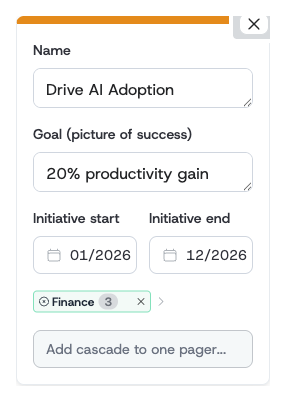
Expand the folder to see the individual cascades inside it. You can remove a single cascade from within the expanded folder, or remove the whole folder — every cascade to that one-pager — in one action.

Changes tab indicators
Voluntary cascading
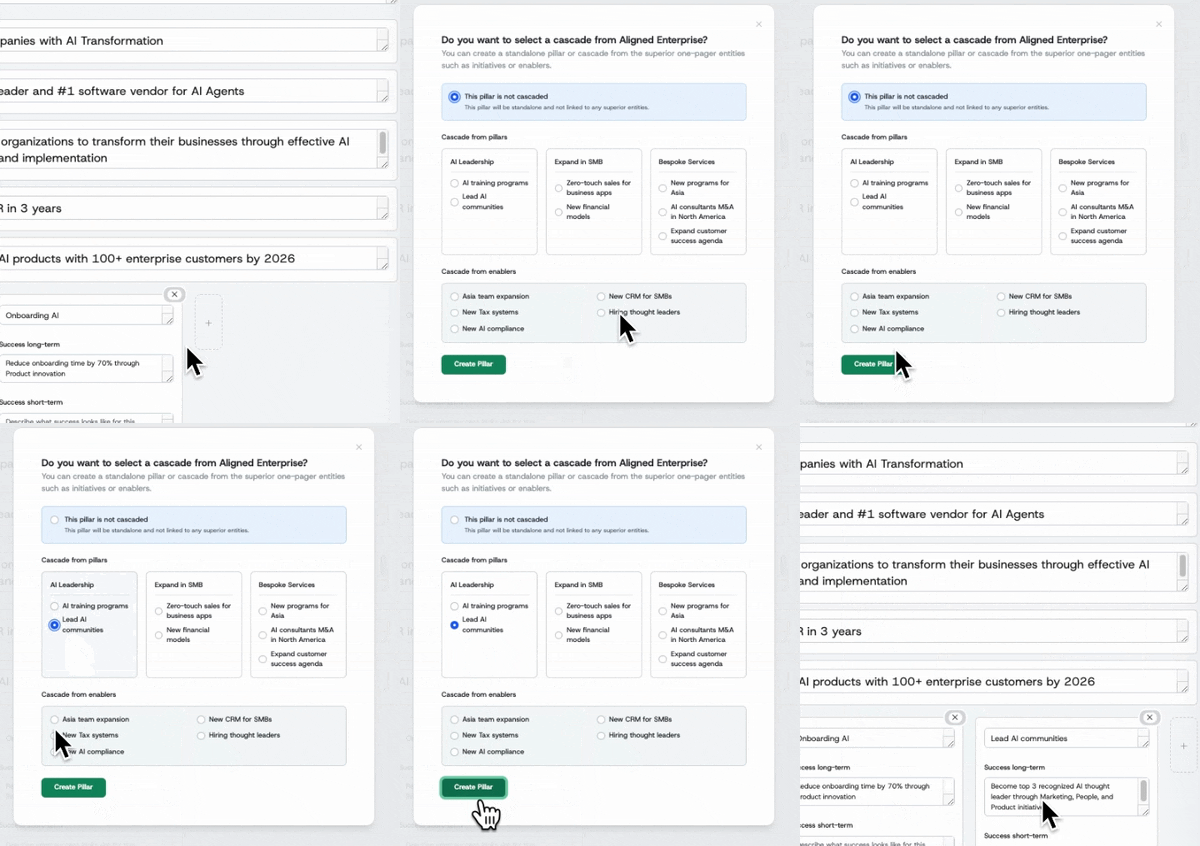
If linked one-pager editors want to proactively contribute to superior one-pager initiatives or enablers, they can create a pillar while selecting the initiative/enabler to contribute to. This action does not require explicit approval of the superior one-pager editors.
Seeing where an initiative or enabler cascades
To see how a single initiative or enabler flows down through the strategy, click its box. A focused window opens with the item's details and a Cascaded to breakdown — one card per linked one-pager, showing what the item became in each.
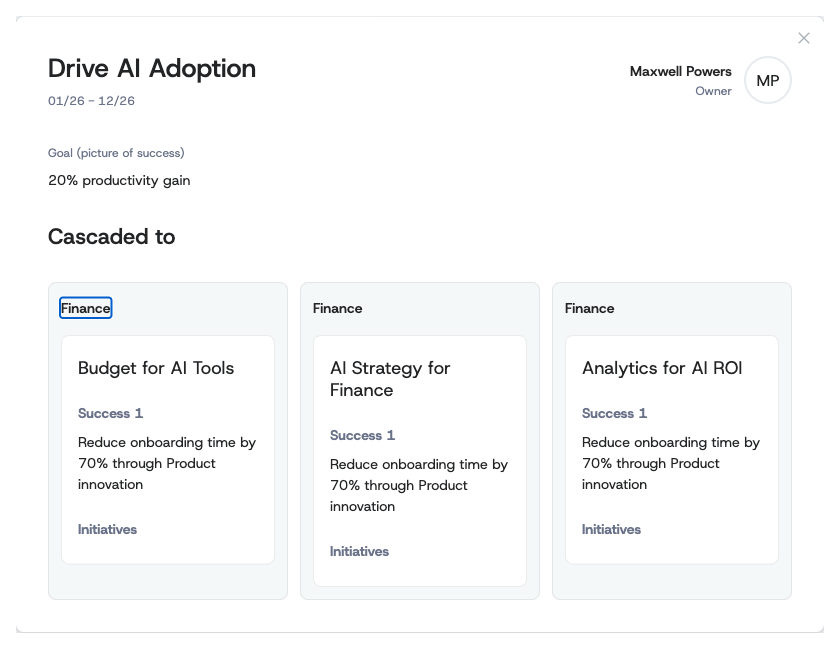
This is the quickest way to check alignment from the top down: at a glance you can see every team that picked up a given initiative or enabler and how each one framed it. The same works for enablers — click an enabler box to see its breakdown across linked one-pagers.
Looking the other way — you are one of the receiving teams and want to see what your peers did with the same cascade — use the peer comparison instead: see Horizontal Alignment.
Updates to cascaded items
When a cascaded item such as initiative goal, Purpose, or enabler gets updated by a user, it does not automatically and silently change in linked one-pagers. Instead, such an update creates a new pending cascade that has to be processed by the editors again. This avoids silent, uncontrolled changes in the one-pager hierarchy.
When the superior one-pager updates a cascaded field
If editors of the superior one-pager change a field that was already accepted by a linked one-pager, a new pending cascade is created. The badge goes from Accepted back to waiting , and the change appears in the linked one-pager's "Incoming changes" section. Editors of the linked one-pager must accept or reject the new value, just like the original cascade.
When the linked one-pager edits an accepted field
After accepting a cascaded value, editors of the linked one-pager may later edit that field locally — for example, to adapt the initiative name to their department's terminology. When this happens:
- The linked one-pager's value has diverged from what was originally cascaded. The cascade is still listed, but the two one-pagers no longer say the same thing.
- The cascade relationship remains intact. If the superior one-pager later updates the same field again, a new pending cascade is created as usual and appears in "Incoming changes". The linked one-pager can then choose to accept the new value (overwriting their local edit) or reject it (keeping their version).
Rejecting cascaded changes
Sometimes a linked one-pager may have localized content that differs from what the superior one-pager is cascading. Instead of accepting the change and overwriting their work, editors can reject the incoming change.
Rejecting keeps the cascade relationship intact while preserving the linked one-pager's current content. The superior one-pager is notified of the rejection and must confirm it.
Rejection workflow
-
Linked one-pager rejects: In the "Incoming changes" section, instead of accepting a cascaded change, click the reject button. This creates a rejection request that goes to the superior one-pager.
-
Superior one-pager confirms: The rejection appears in the superior one-pager's "Rejected by linked one-pagers" section. The superior one-pager must confirm the rejection to acknowledge that the linked one-pager is keeping their own value.
-
Rejection complete: Once confirmed, the linked one-pager's content for that specific field is preserved. The cascade relationship remains, but future changes to the rejected field won't create new cascades. Other fields in the same cascade continue to work normally—for example, a linked one-pager can reject "goal" but still receive updates to "name".
Restoring a rejected cascade
If the linked one-pager later wants to receive updates for a rejected field:
- Find the rejection in the "Rejected changes" section of the sidebar
- Click the restore button
- The cascade moves back to "Incoming changes", where the linked one-pager can accept it as usual
Removing cascades
Just as creating a cascade follows the create-cascade-accept workflow, removing an established cascade also follows a similar process. This ensures that nothing happens silently and that linked one-pagers are always informed about changes.
When you remove a cascade badge
To remove a cascade, open the initiative or enabler, hover the cascade's badge in the Linked one-pagers row and click its ×. What happens next depends on whether the cascade has been fully established (accepted by the linked one-pager):
-
For pending cascades (not yet accepted): The cascade is removed immediately. Since the linked one-pager never accepted the cascade, there's nothing to notify them about.
-
For established cascades (already accepted): A removal request is created and must be cascaded down like any other change. Editors of the linked one-pager will see it in their "Incoming changes" and must explicitly accept or reject the removal.
Note: The Accept all button intentionally skips cascade removals. Because accepting a removal permanently deletes a pillar, each removal must be reviewed and accepted individually.
Accepting removal deletes the pillar
When editors accept a cascade removal, the entire pillar is deleted from their one-pager. Before accepting a cascade removal, ensure you have saved any content from the pillar that you want to keep. Once accepted, the pillar and its contents are permanently removed.
Canceling a removal request
If you change your mind before the linked one-pager processes the removal:
- Add the same cascade again with + Add cascade, or click Discard on the removal in
Outgoing changes - The removal request is canceled
- The cascade continues as before
What if the removal is rejected?
If the linked one-pager rejects your removal request:
- The cascade relationship is removed, but the pillar is preserved in the linked one-pager
- The pillar becomes independent and is no longer connected to your initiative
Asking to be unlinked
Removal does not have to start at the top. A linked one-pager that no longer wants to receive a cascade can request the unlink itself — useful when a team's work has moved on and an inherited initiative no longer applies to them.
- The linked one-pager requests it: in the linked one-pager, ask for the cascade to be removed. Nothing changes yet — the request travels up.
- The superior one-pager confirms: the request appears in the superior
one-pager's
Rejected by linked one-pagerssection, with a note explaining that the linked one-pager wants out. Click Confirm to acknowledge it. - Unlink complete: the cascade relationship ends. As with a rejected removal, the linked one-pager keeps its own content — only the link goes away.
As everywhere else in cascading, nothing happens silently: the superior one-pager always gets the final say on whether the link is cut.