Overview
A one-pager is your team's strategy on a single page. This guide is the starting point for building and editing one — it walks through every part you can fill in, then points you to the more focused guides for cascading, formatting, approvals, and reporting.
Every one-pager is made of a few building blocks:
- Strategy context — the high-level framing: Purpose, Vision, Mission, Company Ambition, and Team Ambition.
- Pillars — the strategic themes that organize your work, each with its own success definitions.
- Initiatives — the concrete bodies of work that live inside a pillar, each with a goal (its "picture of success").
- Enablers — capabilities or foundations that support the whole strategy.
- Company values — the cultural principles behind how you work.
- Narratives — optional free-text context, for the one-pager as a whole and for each individual initiative and enabler.
You don't have to fill in everything — use the parts that fit your level and your team.
Creating a one-pager
New one-pagers are always created underneath an existing one — that's how the hierarchy stays connected.
- Open the one-pager that should sit above the new one.
- Click New OP in the context bar. (It only appears if you can create one-pagers — administrators.)
- Give it a Title and pick an Owner, then click Save One-Pager.
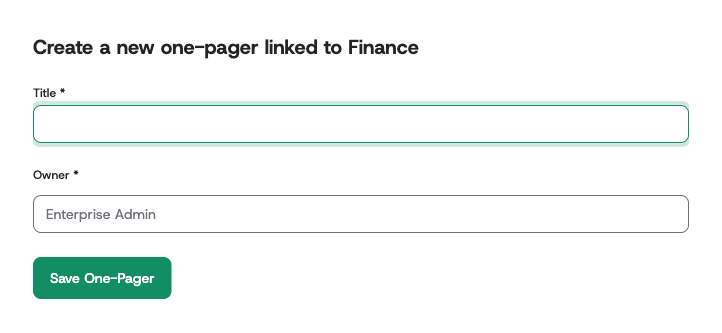
The new one-pager starts empty, at the level below the one you started from, already linked to it as a linked one-pager. The owner you choose can fill it in — see One-Pager Owners.
To move a one-pager somewhere else in the hierarchy afterwards, see Changing the Superior One-Pager.
Who can edit
Editing is available to the one-pager's owners (on the one-pager they own and everything beneath it) and to administrators. Owners don't need organization-wide edit rights — owning the one-pager is enough to edit, approve, lock, and cascade within their own branch of the strategy.
If you can only view a one-pager, the Edit option won't appear. Ask to be added as an owner: any existing owner or administrator can do that from the Owners dialog — see One-Pager Owners.
Entering edit mode
Open the one-pager and switch the View / Edit toggle in the context bar at the top of the page to Edit. The page stays in place but every field becomes editable, and the right-hand insight bar gains the Changes, AI Guide, History, and Settings tabs. Switch back to View at any time to see the one-pager the way everyone else does.
One thing open at a time. Pillars, initiatives, enablers, and values start collapsed. Click one to open it for editing — and the previously open item closes on its own. This keeps a busy one-pager readable instead of unfolding every field at once; if you followed a link straight to a specific item, it opens for you automatically.
Everything you type saves automatically — there is no Save button. Click into a field, make your change, and click away (or move to the next field); the change is stored immediately and, where relevant, picked up by the change-tracking and cascade machinery.
If the connection drops while you are typing, keep going. Alaigned holds on to what you typed and saves it as soon as the page is connected again — even if the page had to reload in between. It can do that for as long as the browser tab stays open.
If someone else changed the same field in the meantime, their change is not overwritten. Your text appears instead in a notice at the top of the page, An edit you made while disconnected was not saved, and stays there until you deal with it: Copy text puts it on your clipboard so you can paste it back into the field, Discard drops it.
Strategy context
The block at the top of the one-pager holds the five strategy-context fields. Click the header strip to expand it, then fill in each field:
- Purpose — why your organization exists.
- Vision — where you're heading.
- Mission — what you do to get there.
- Company Ambition — the headline, company-wide target.
- Team Ambition — your team's own headline target (shown on team-level one-pagers).
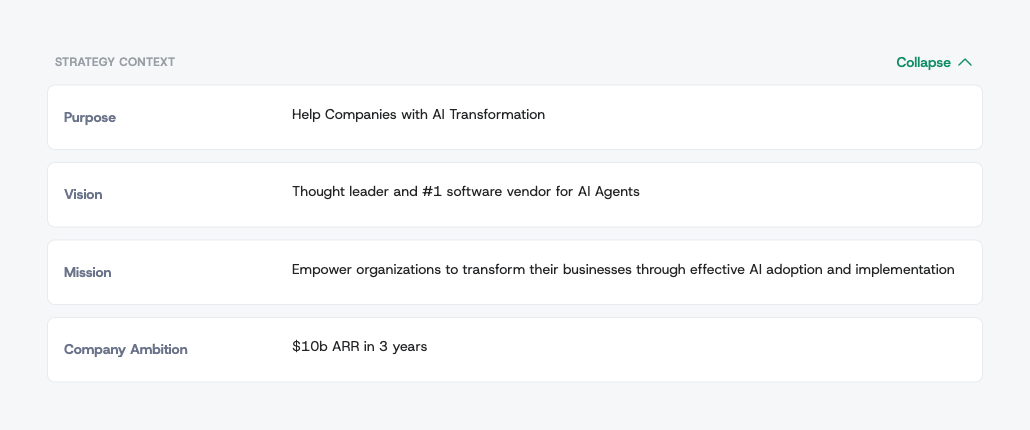
Which of these appear, and what they're called, depends on your organization's template and on the one-pager's level — a top-level company one-pager and a team one-pager don't ask for exactly the same fields.
All of these fields support Markdown, so you can add emphasis, lists, and links — see Text Formatting.
Pillars
Pillars are the strategic themes that structure the one-pager. To add one, click the dashed + tile at the end of the pillars row. A new, empty pillar appears — click its title to name it (for example AI Leadership or Customer Obsession).
Inside each pillar you can also fill in its success definitions (such as long-term and short-term success), which describe what "done" looks like for that theme.
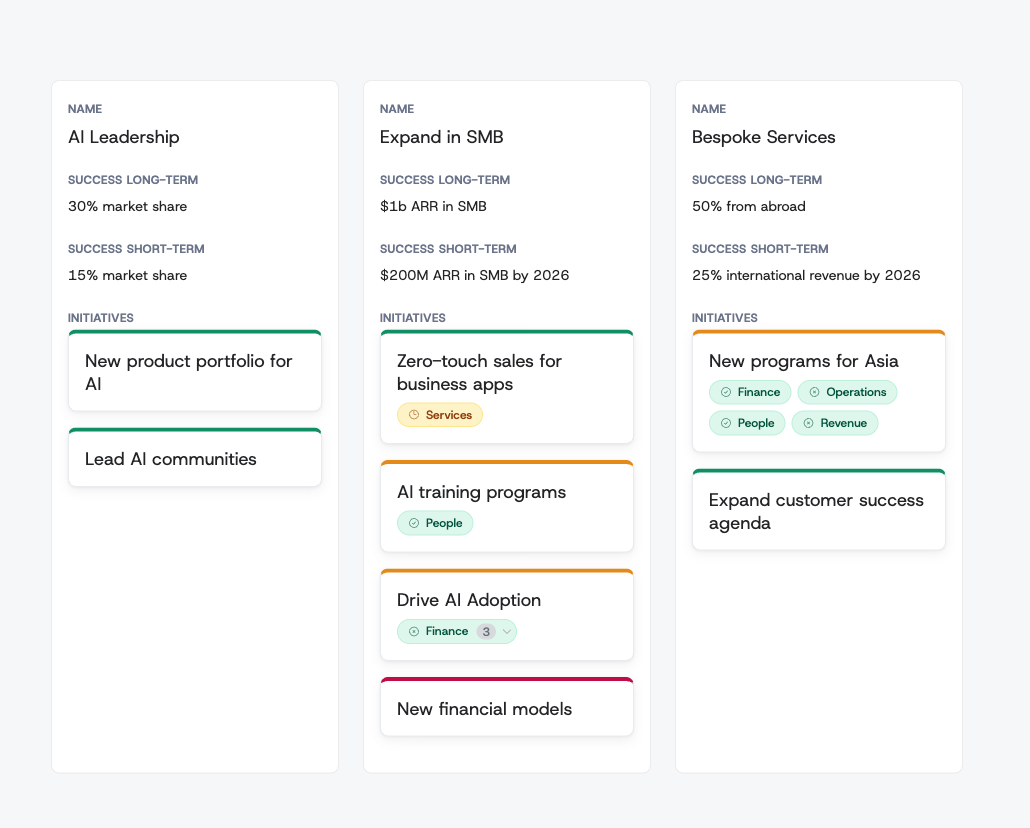
To remove a pillar, hover it and click the × that appears in its top-right corner. (If the pillar was cascaded down from a superior one-pager, removing it follows the cascade-removal workflow instead of deleting it outright.)
Initiatives
Initiatives are the concrete work items that live inside a pillar. To add one, expand a pillar and click Add new initiative. Each initiative has:
- A name — what the initiative is.
- A goal (the "Picture of success") — the measurable outcome you're aiming for.
- A narrative — optional room for the background behind the initiative (see below).
- Optional start and end dates that place it on the roadmap.
The name, the goal, and the narrative all support Markdown.
Initiatives (and enablers) also carry an evaluation status — the 🟢 / 🟠 / 🔴 indicator you set to report how the work is tracking. Click the status control on the item to set it; those statuses then roll up into the Strategy Evaluation Report. You can hide the status colours from the Layers menu in the context bar.
Enablers
Enablers are the cross-cutting capabilities or foundations that support the whole strategy — for example New CRM for SMBs or Hiring thought leaders. Add one by clicking the dashed + card in the Enablers section, then fill in its content. Like initiatives, an enabler carries its own narrative and its own evaluation status, and both feed the Strategy Evaluation Report.
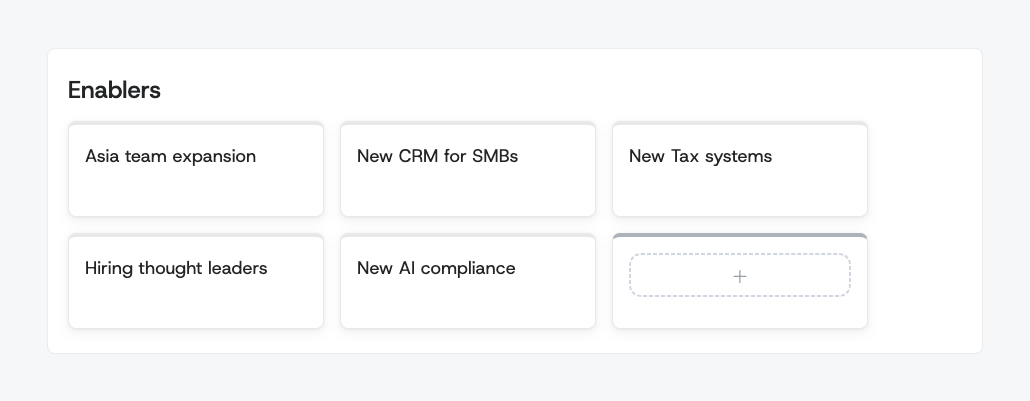
To remove an enabler, hover it, click the × that appears in its top-right corner, and confirm in the dialog that opens. (An enabler that still cascades to a linked one-pager can't be removed until you take the cascade away first — see the cascade-removal workflow.)
Company values
Company values capture the cultural principles behind your strategy. Add a value with the dashed + card in the Values section and type its content. Values support Markdown too.
How many is too many?
The methodology recommends an upper count for each of these lists — pillars on a one-pager, initiatives inside one pillar, enablers, and company values. A one-pager that stays inside those counts is one a team can actually hold in mind; past them, attention spreads thin and prioritisation quietly stops happening.
These are recommendations, not rules. When an addition would take a list past its recommended count, a dialog tells you where you stand — for example "This one-pager already has 5 Strategic Pillars. The methodology recommends at most 5." — and offers Add anyway. Nothing is blocked, and nothing is deleted if you are already over: the dialog is a prompt to ask whether the new item earns its place, or whether something else should give way first.
The counts come from your organisation's own methodology, and the dialog always names the one that applies. By default that is up to 5 pillars on a one-pager, 5 initiatives within a pillar, 5 enablers, and 8 company values — the same at every level, from the company one-pager down to team one-pagers.
Narratives
A one-pager states what you plan to do. A narrative is where you say why — the background, the reasoning, the context that a bare goal can't carry. There are two kinds.
The one-pager narrative
The Narrative at the bottom of the editor holds the longer story behind the whole one-pager. If you switch it on in the one-pager's Settings tab, it shows up in the Overview section of the sidebar in view mode.
Narratives on initiatives and enablers
Every initiative and enabler also has its own optional Narrative field. Open the item and type into the field marked "Add context, background, or rationale…":
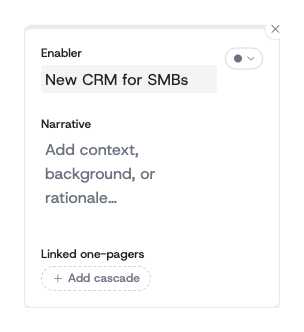
Leave it empty and nothing changes — the field only appears in the detail window once it has content. Narratives support Markdown, so you can structure a longer explanation with lists and emphasis.
This is the right home for the reasoning your team will otherwise lose: why this initiative and not another, what you tried before, which constraint shaped the goal. Whoever opens the initiative in six months gets the reasoning along with the target.
Reordering items
Pillars, initiatives, enablers, and company values can all be dragged into a different order in edit mode. Pick an item up and drop it where you want it — the new order saves immediately and is what everyone else sees.
Initiatives can also be dragged from one pillar into another, which is the quickest way to restructure when work moves between themes. An initiative that was cascaded to you from a superior one-pager can't be moved this way; it has to change at its source.
Deleting a one-pager
Deleting is permanent, and it takes the whole branch with it. Open the one-pager → Edit → the Settings tab → Delete One-Pager.
The confirmation dialog spells out the blast radius before you can proceed — including every linked one-pager underneath that would be deleted along with it, listed by name:
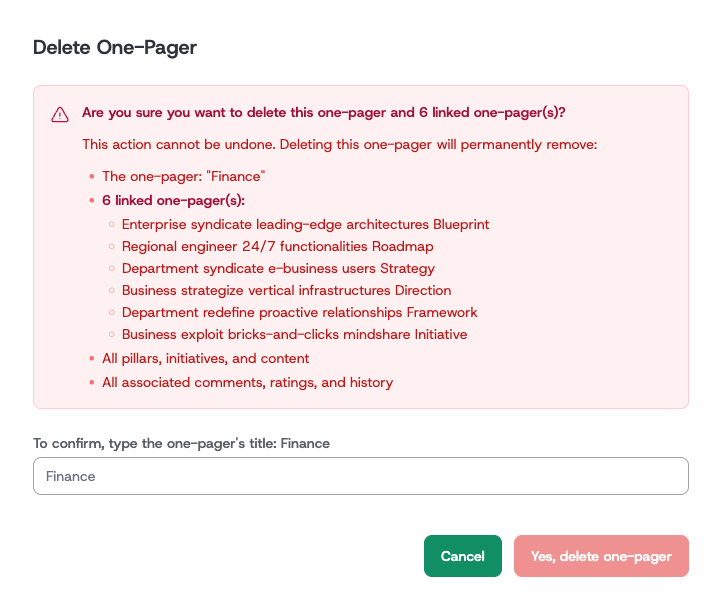
To confirm you have to type the one-pager's title exactly; the delete button stays disabled until you do. Deleting removes the one-pager, all its pillars, initiatives and content, and all its comments, ratings, and history. There is no undo and no recycle bin.
If your goal is to stop a one-pager changing rather than to destroy it, use locking instead — the content stays readable to everyone.
Tagging your one-pager
Add tags in the metadata area near the title to group and find one-pagers later — see Tags for how tags work and how to filter the strategy by them.
Getting help from the AI Guide
While editing, open the AI Guide tab in the insight bar for an assistant that can suggest improvements, help you word a mission statement, or propose a new pillar, initiative, or enabler — and apply the suggestion with one click. See AI Capabilities.
Cascading work to linked one-pagers
Once you've created an initiative or enabler, you can cascade it down to the linked one-pagers that should pick it up. In edit mode, open the item and click + Add cascade under Linked one-pagers, then choose the linked one-pager. Each cascade you add shows up as a badge in that row.
Cascading is a deliberate, three-step flow — create the cascade, send it down with Cascade, then the other team accepts — so that nothing changes silently. The full workflow, including rejecting and removing cascades, lives in Cascading Strategy One-Pagers. As you cascade, keep an eye on the incoming / outgoing / pending badges on the Changes tab — those are explained in Indicating Changes in a Cascade.
Contributing up: voluntary cascades
Cascading usually flows top-down, but a linked team can also proactively contribute to a superior one-pager's initiative or enabler. When you add a pillar to a one-pager that has a superior, Alaigned asks whether the new pillar should cascade from one of the superior's entities:
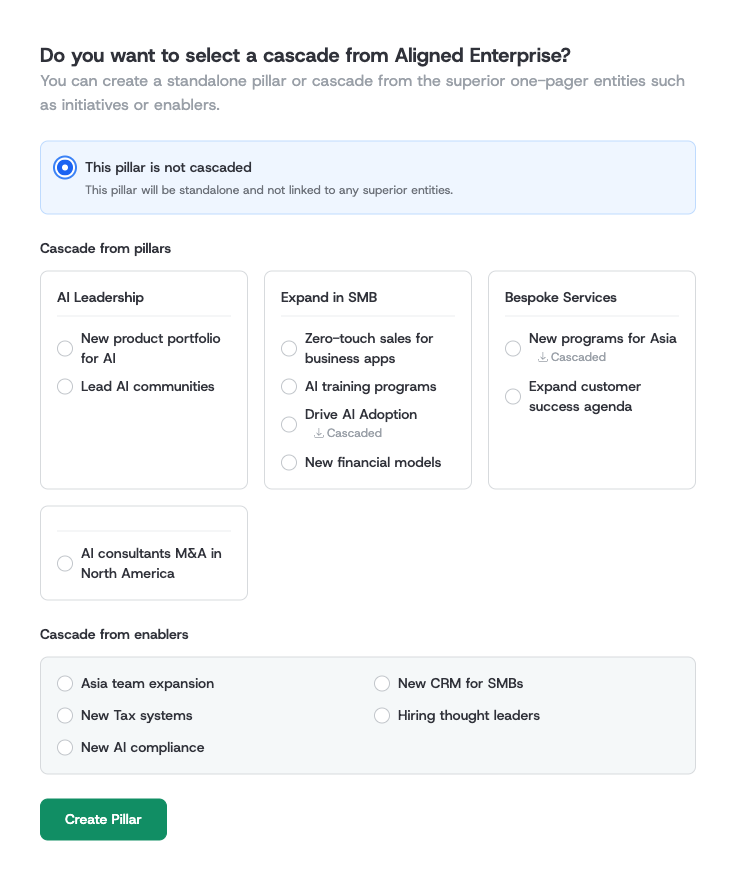
- Choose This pillar is not cascaded to create a standalone pillar, or
- Pick any superior initiative (under Cascade from pillars) or enabler (under Cascade from enablers) to link your new pillar to it — your contribution flows up without needing the superior team's approval.
Then click Create Pillar. This voluntary cascade is also covered in the Cascading Strategy guide.
Tracking and finishing your work
- See what's changing — the Changes tab and its badges track incoming, outgoing, and pending cascades: Indicating Changes in a Cascade.
- Move through the lifecycle — when the content is ready, request approval and track the one-pager's status: One-Pager Status Lifecycle.
- Confirm your evaluation — when your level's evaluation window is open, the Governance tab in the sidebar says what the period asks of this one-pager and lets you mark it done: Confirm your evaluation.
- Find your way around a big one-pager — use the compass minimap to jump between pillars, initiatives, enablers, and values: Navigating Large One-Pagers.
Related administration tasks
Some structural changes are handled by administrators:
- Move a one-pager under a different superior: Changing the Superior One-Pager.
- Freeze a finalized one-pager against further edits: One-Pager Locking.
- Rename fields or mark them mandatory/read-only for the whole organization: Template Editor.